Open MBOX File in Gmail Easily with Simple Steps

Published: November 13th, 2025 • 6 Min Read
If you want to open MBOX file in Gmail you can simply use a reliable third-party solution for an easy and safe transfer, or use a manual method with the Thunderbird email client. It takes lots of time but works if you follow the steps carefully. Both ways allow you to see your emails inside Gmail accounts.
However, manual methods have their own disadvantages. They do not work well when you have large data and may also cause data loss. So, if you want to save your time and make safe conversion without additional setup, then you should go with the professional method to transfer MBOX in Gmail. In this blog we will help you to find the best way to import MBOX in Gmail to fulfill your requirements.
Main Reasons to Upload and Open MBOX in Gmail
These are the main reasons we mention why we need to import emails from MBOX to Gmail:
- Access Emails Anywhere: Gmail is a cloud-based platform that helps you to access data anytime, whether you are traveling, working remotely and using multiple devices like phone, tablet or computer. When you upload MBOX to Gmail, it allows you to check emails from any device like with an internet connection.
- Better Email Organization: Gmail keeps all MBOX emails in an organized structure. It also helps you to find important messages quickly and lets you use labels or create folders also. In other words, it allows you to easily manage or access without any huddle.
- Data Safety and Security: MBOX files are stored on computers and cause risk of data loss or limited access. But when we open an MBOX file in Gmail, your emails are stored safely in the cloud. You can easily access your emails from any device even if your system crashes or is damaged.
Different Approaches to Import MBOX Files to Gmail Account
If you follow the right method you can easily transfer MBOX to Gmail without wasting time and energy. It is not difficult to import emails from MBOX to Gmail, you just need to follow us. Here we will learn manual and professional methods to open MBOX file in Gmail. Firstly, we start with Thunderbird for a manual transfer after that use professional tool for quick upload:
Manual Method to Import MBOX file in Gmail With Thunderbird
- First, install or open Thunderbird on your system and then configure your Gmail account in Thunderbird.
- Next, go to the Thunderbird menu and click on Add-ons and Themes.
- After that, search Import/ExportNGTools and + Add to Thunderbird.
- Now, on the left panel right click on local folder and click on the Import/Export NG Tools.
- Choose Import MBOX Files and Individual MBOX Files as per needs.
- Then, browse and select the MBOX file from the desktop that you want to import.
- Drag and drop emails from Local Folders to Gmail inbox or folder.
- Finally open Gmail to confirm that all MBOX emails are successfully imported.
Limitations of Manual Method
- It takes a lot of time when you have large or multiple MBOX files, you need to move them one by one.
- It creates risk of data loss and incomplete email transfer if you missed any step during the process.
- It requires technical skills or knowledge because it is quite confusing for beginners to configure IMAP, and use add-ons.
- It also imports all unnecessary emails because there is no filter option that helps you to filter required data.
Use Professional Solution for Importing MBOX Files into Gmail
The professional method is a reliable solution to convert MBOX to Gmail without losing any information. The software offers various features like bulk migration, data integrity, filter option, and Windows compatibility. You can easily open MBOX files in Gmail in less time and don’t require any complex setup.
MBOX Email Converter has a user-friendly and simple layout but if you still need assistance or personalization in software you can also reach out to the customer support team. A free demo version is available to test the software’s performance before purchase.
Steps to Upload MBOX Files to Gmail Account
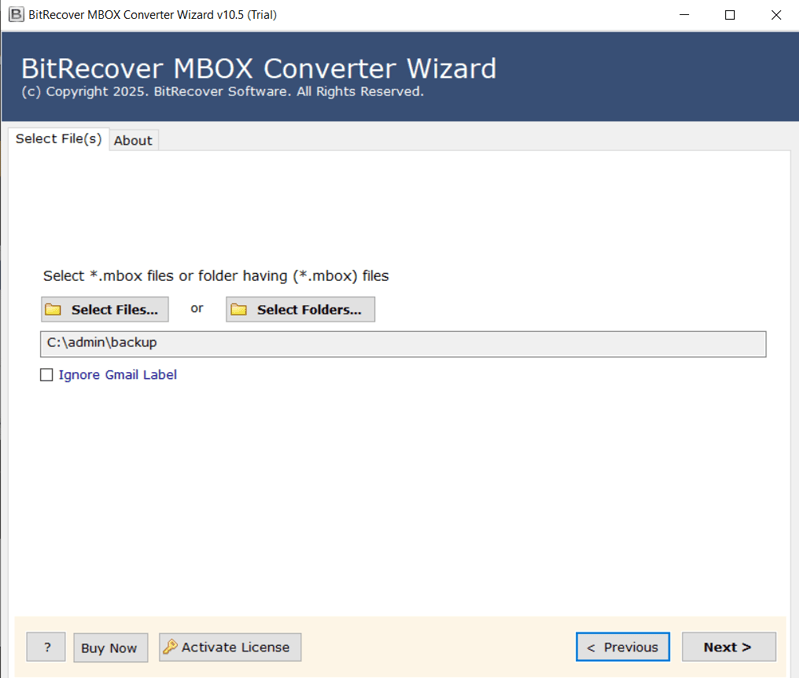
- Launch and open the MBOX to Gmail Converter tool on your computer.

- Then select files or folders to upload MBOX file and click “Next“.
- Choose “Gmail” from the list of saving formats.

- Now, enter your Gmail login credentials to allow the tool to connect and transfer your emails securely.

- Browse a desirable destination path and click on “Convert” to start the process.

Key Benefits of MBOX to Gmail Converter
- It offers dual file selection option in which you upload single files or either whole folder at once according to your needs.
- It also supports multiple email clients, including Gmail, Outlook, Thunderbird, and allows you to easily convert MBOX to CSV, PST, PDF, and other file formats.
- It provides a useful filter option that helps you to remove unnecessary data and helps you to focus on important emails. You can filter data by Date Range, To, From, Subject and more.
- It has a simple and easy-to-understand layout whether you are a technical or a non-technical user you can easily work with the software.
- It maintains original folder hierarchy, email formatting, attachments, and metadata like To, From, Subject, and Date without any loss.
- There is no file size restriction and allows importing small mailboxes or large MBOX archives without any file corruption.
- It allows you to open MBOX files in Gmail with all versions of Windows whether new or old.
Summary
In this blog, we mention two solutions to open MBOX in Gmail with a manual using Thunderbird and automated software. While manual methods involve risk and time-consuming, the automated tool provides a secure way to import all emails, attachments, and folders without any data loss. Additionally, the software also has a free trial version so that users can take higher advantage.