How to Convert MBOX File to PDF in Bulk Without Data Loss?

Published: November 7th, 2025 • 6 Min Read
Overview: MBOX files store many emails together in one file and are used by multiple email clients like Apple Mail, Thunderbird, SeaMonkey and others. In this guide, we will help you to learn how to convert MBOX to PDF in bulk using both manual methods and a professional tool to export, print, and save your emails neatly for Windows or Mac systems.
Reasons Why You Should Convert MBOX to PDF Files
Converting an MBOX file to PDF allows you to keep data safe, easy-to-read and organized format. Here are some reasons why it is important to convert MBOX files to PDF formats:
- PDF formats keep your emails safe, secure, printable and easy to share across devices.
- It helps you to open or view files without additional using any email program.
- It ensures data protection as PDF files never get corrupted easily as compared to MBOX files.
- It also preserves original email formatting, attachments, and metadata accurately in PDF.
- PDF is a trusted file format used by forensics and organizational audits.
Techniques to Convert MBOX file to PDF Format
There are manual or professional methods you can use to convert MBOX to PDF. The manual method involves importing MBOX files into an email client like Thunderbird and saving emails one by one as PDF. While a professional MBOX converter helps you to convert MBOX files in bulk at once and saves time. You can easily export MBOX to PDF with an expert MBOX to PDF converter when you have to manage large email archives for business, legal or forensics purposes.
Manual Method to Convert Mailbox Emails to PDF
If you want to export Mailbox to PDF manually it may take extra time and effort but it is also a useful option. These steps help you to convert MBOX email to PDF by using Mozilla Thunderbird.
Steps to Export MBOX to PDF using Mozilla Thunderbird:
- Download and start installing Mozilla Thunderbird on your computer.
- Then, open Thunderbird and go to Add-ons and Themes, then search for ImportExportTools NG, and install it.
- Restart Thunderbird to activate the add-on.
- After that, right-click on the local folders and choose ImportExportTools NG > Import MBOX file > Individual MBOX files.
- Browse and choose the MBOX file you want to import and click ok.
- Then, right click on the imported email and choose ImportExportTools NG > Export all messages in the folder > PDF Format.
- Finally, save the PDF file to the desirable location.
Limitations of Manual Methods:
- The process is a time-consuming process and you need to export each email individually.
- It requires good technical knowledge because if you make a mistake, you might lose your data.
- Attachments may not save with emails and it leads to incomplete email records.
- The method also leads to formatting issues, missing headers, or distorted layouts.
Expert Tool to Convert MBOX file to PDF
The MBOX Email Converter tool helps you to easily convert multiple MBOX files in bulk at once. The software saves users time when you have large data. You can export all MBOX files together with the below mentioned simple steps instead of converting each email one by one. You can convert MBOX emails to PDF offline and protect data from loss or corruption. You don’t need to upload a file on a server or online portal.
The MBOX Email to PDF converter offers multiple file saving formats such as PST, EML, TXT, HTM and more. It has a simple and user-friendly interface for both professional and non-professional users. We also provides 24*7 customer services. If you face any difficulty and want personalization or customization in software you can directly reach out to the customer support team.
Simple Steps to Convert MBOX Email to PDF:
- Download and launch the above software on your computer.
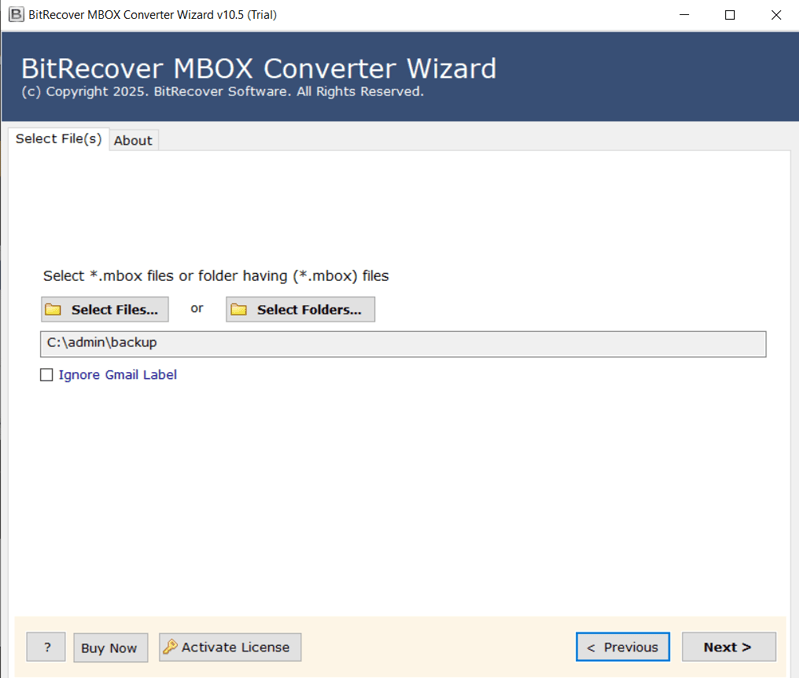
- Browse and add MBOX files or folders you want to convert.
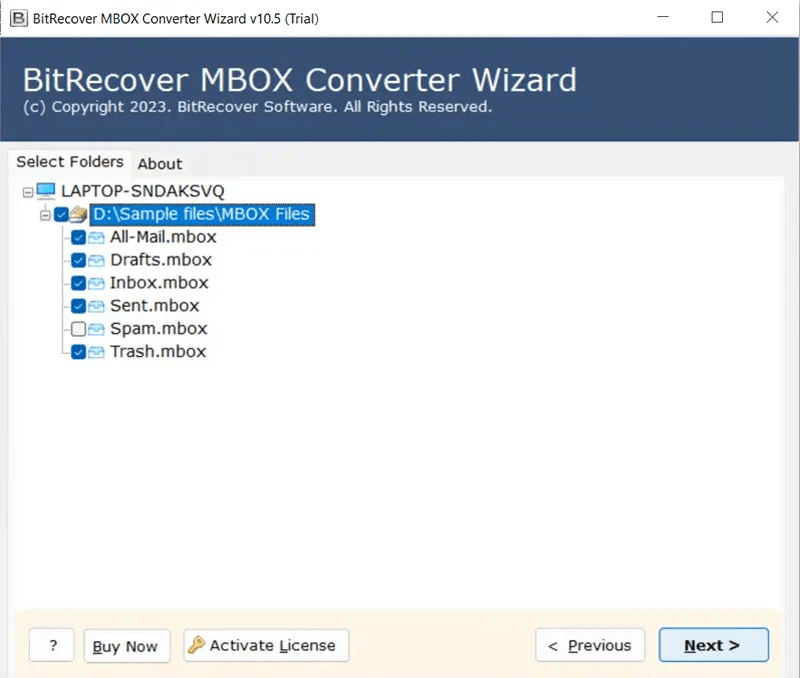
- Select the MBOX folder from the directory tree, choose the required mailbox files, and click “Next” to continue.
- Choose PDF as a saving format from the list of options.

- Select the desirable location and click the “Save” button to convert MBOX to PDF.
Key Features of MBOX to PDF Converter
- Supports All MBOX Email Clients: The tool helps you to easily open and convert MBOX emails to PDF from multiple email clients like Thunderbird, Apple Mail, SeaMonkey and more.
- Convert Batch MBOX Files: The software helps you to convert single or many MBOX files at once without file size limitation or restriction. It saves time and effort, when you have thousands of emails.
- Keeps Attachments and Details Safe: It keeps all email attachments, sender details, and dates without losing data and original structures or format of file. It also allows you to save email with or without attachment without losing any information.
- Works on All Windows Versions: It is also compatible with all versions of Windows like Window 11, Window 10, Window 8, Window 8.1, Window 7 and older ones. You easily convert the file without any additional setup.
- Advanced Email Filter & Search: The software provides advanced filters options that helps you to find and convert specific emails by keyword, date, or sender. You can quickly export MBOX emails to PDF without any difficulty.
Conclusion
To convert MBOX email to PDF you can use any of the methods we discuss in this guide as per your preference. Users face some challenges while converting with Mozilla Thunderbird and also not be able to export MBOX to PDF in bulk. Although the professional MBOX email converter allows you to convert many files without size restriction. The MBOX to PDF Converter tool also provides a free trial to the users that helps you to better understand software features and performance before purchasing. However, the converter also keeps all information safe, secure and helps you to easily convert MBOX files with a simple interface.